Install Instructions (5 minutes)
- Install the "Sandbox System Builder" system.
- Create a new Game World. Use the Sandbox System Builder as your system.
- Launch your Game World.
- Go to the Game Settings tab of the side panel.
- Click "Configure Settings".
- Go to System Settings tab.
- Untick "Show Roll With Advantage" option. Not relevant for this game.
- Untick "Show d20 Roll icon" option. Not relevant for this game.
- Untick "Show DC window". Not relevant for this game.
- Paste the text below into the "CSS Style file" input box.
https://spandexandy.net/foundry/sigilandshadow-v20220217.css - Click Save Changes.
- Click "Import Sandbox Json". Import this file. https://spandexandy.net/foundry/sigilandshadow-v20220217.json
- It was built using Foundry 9.249 and Sandbox 0.12.1 in February 2022.
- Wait about 2 minutes until it finishes. There is no success message to tell you it is finished.
- Click "Back to Join Screen" to exit the world.
- Then go back in.
- Go to the Items Directory tab of the side panel. Note that two new folders exist here now. _COMPENDIUM and _TEMPLATE. Do not delete them. They contain the nuts and bolts for the character sheets.
- Go to the Actors Directory tab of the side panel. Note that a new folder exists here now. _CONFIG. Do not delete it. It contains the base templates for the two character sheets included:
- Template PC.
- Open it by clicking on it.
- Click "Rebuild Sheet".
- This will also reload your game world.
- Template NPC.
- Open it by clicking on it.
- Click "Rebuild Sheet".
- This will also reload your game world.
How To Use It To Create A PC
- Create a new Actor in your game.
- At the top, click the dropdown to select "Template PC".
- Note there are 3 tabs.
- Stats. For all your stats and skills. Tick skills to mark them as trained. Otherwise they are at -20. A table for specialities. Click the little + symbol to add a new Speciality.
- Abilities. For all your special powers and spells. Click the little + symbol to add a new Ability or Descriptor.
- Notes. For narrations and bio info. A table for Weapons.
How To Roll Dice
- Open your Actor character sheet.
- Method 1: Basic.
- On the Stats tab, click the big dice icon. A window will open.
- Tick the stat you want to roll under.
- Tick the modifier you want to apply to the roll.
- Click OK.
- Method 2: Stats.
- On the Stats tab, click the name of a stat.
- Tick the modifier you want to apply to the roll.
- Click OK.
- Method 3: Skills.
- On the Stats tab, click the name of a skill.
- Tick the stat you want to roll under.
- Tick the modifier you want to apply to the roll.
- The skill modifier (e.g. -20 if untrained) is applied automatically.
- Click OK.
- Method 4: Specialities.
- If you have a Speciality, click the small dice icon.
- Tick the stat you want to roll under.
- Tick the modifier you want to apply to the roll.
- The Speciality rank (e.g. +10 if rank 1) is applied automatically.
- Click OK.
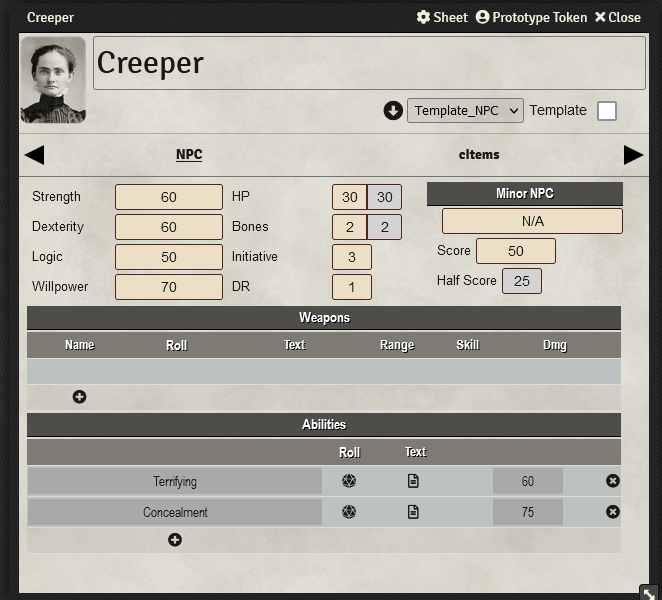
How NPCs Work
- You can have a Minor NPC, like a "Street Criminal" that is just described by a single number and a Descriptor. Use the right-hand section of the sheet for this.
- You can have a more detailed NPC, like Cadence that has more details. You can use the left-hand section, and the Weapons and Abilities tables for this.
- To roll dice, you can click on a stat, or a Weapon or Ability.